> ## Documentation Index
> Fetch the complete documentation index at: https://docs.tryearmark.com/llms.txt
> Use this file to discover all available pages before exploring further.
# Custom templates
> Create reusable meeting templates for yourself or your workspace
## What it does
Custom templates let you save reusable meeting prompts in Earmark.
Use them when you have a format your team runs often, like:
* Weekly standup recaps
* Customer call summaries
* Ticket or action-item trackers
* Team-specific updates and handoff notes
Once saved, a template can be:
* Used again from the **Templates** picker
* Invoked quickly from the `/` command in the meeting view
* Shared with teammates through **Workspace** visibility
* Shared through a public `Copy link` URL that opens the current template in Earmark
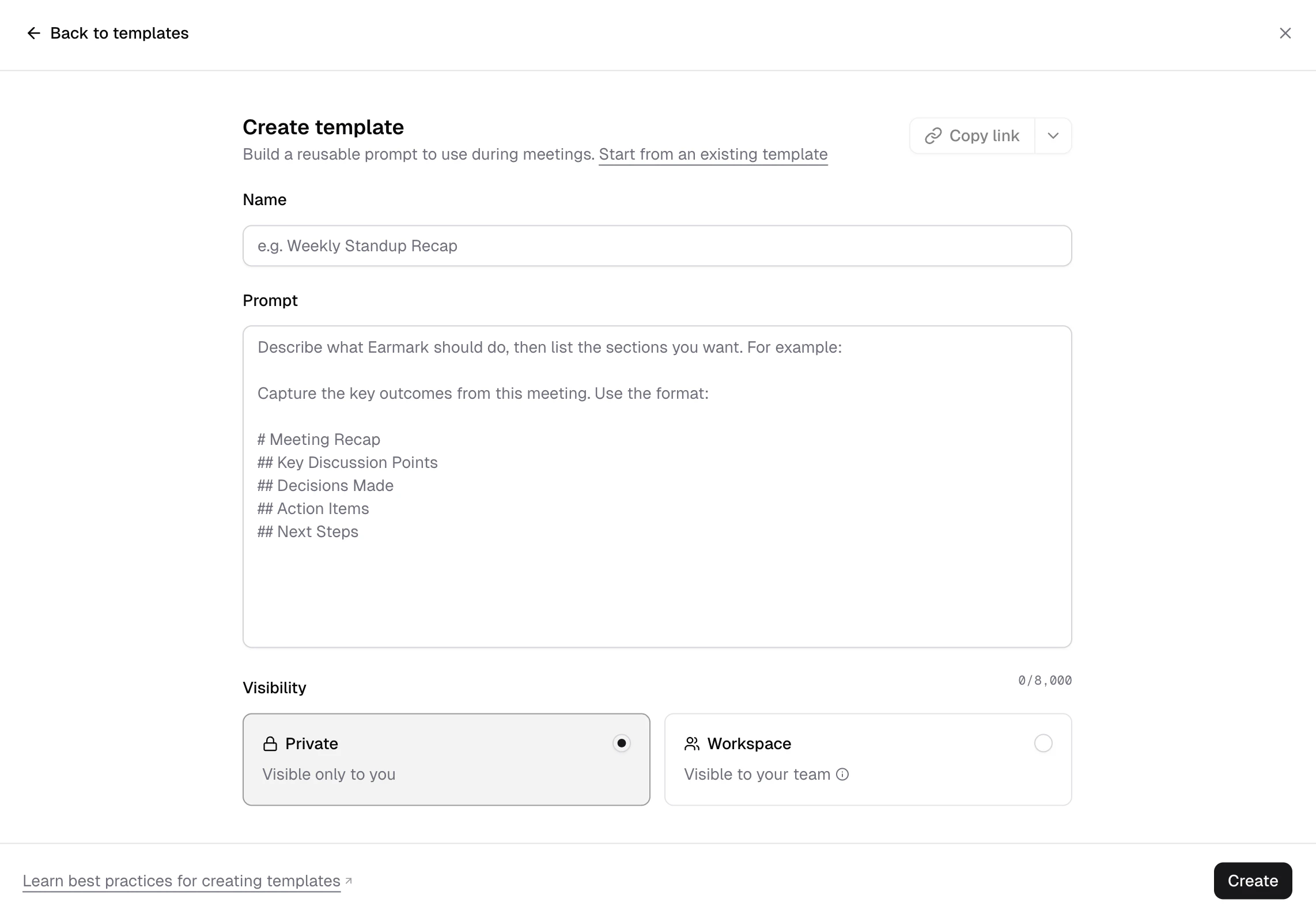
## Create a template
### From the Templates picker
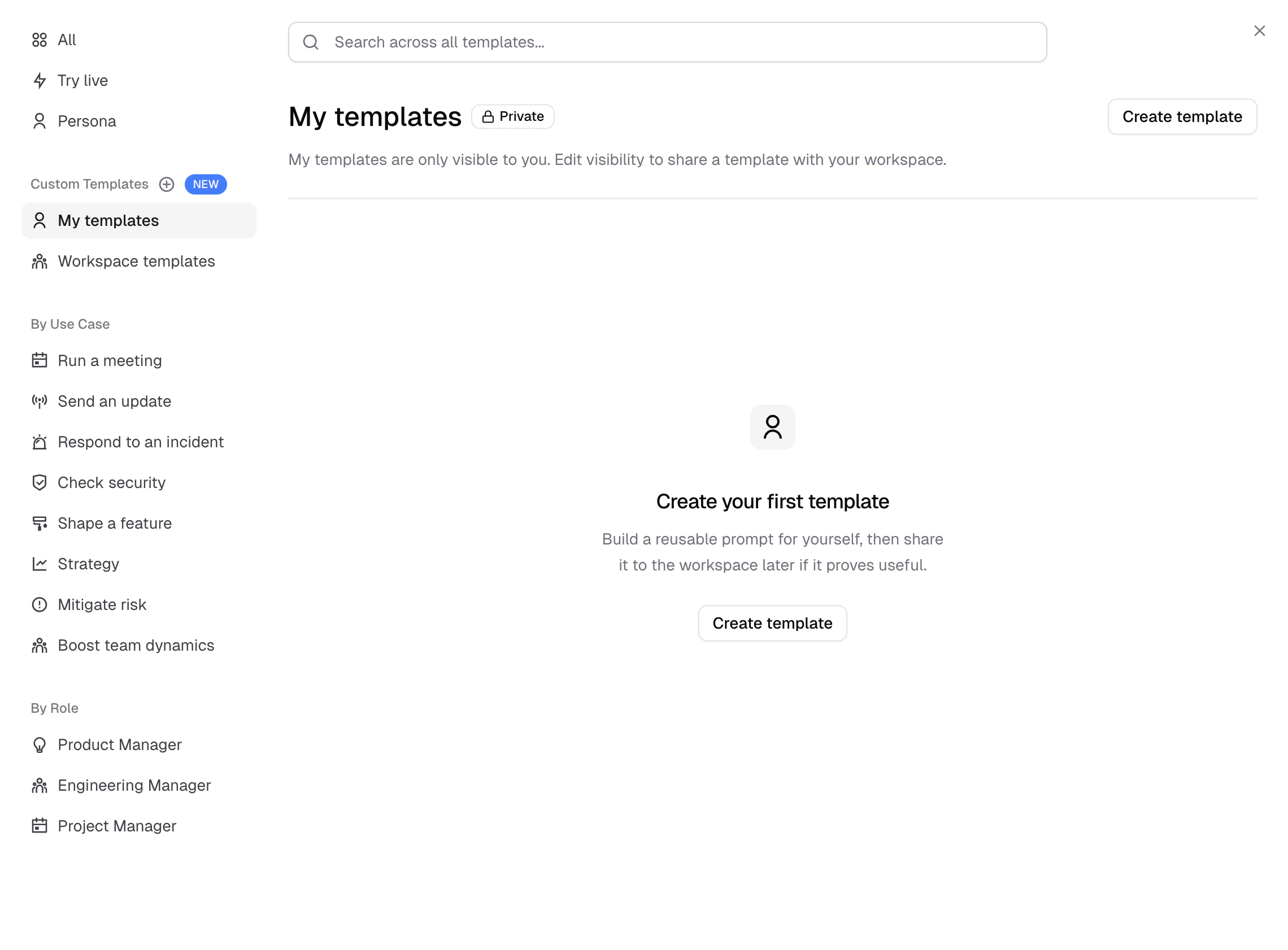
Open the **Templates** picker in the meeting view, then create a new template from your personal or workspace section.
### From the fullscreen composer
If you are in the fullscreen artifact composer and want to reuse the prompt later, open the composer menu and choose **Save as template**.
You can also start from an existing template instead of starting from scratch.
## Choose visibility
### Private
* Visible only to you
* Best for personal workflows or drafts
### Workspace
* Visible to your team in the workspace
* Best for shared team formats
## Who can edit or delete a template
### If the template is Private
* Only the creator can see it
* Only the creator can edit it
* Only the creator can delete it
### If the template is Workspace
* The creator can edit and delete it
* Workspace admins can also edit and delete it
### Important visibility rule
Only the original creator can move a workspace template back to **Private**.
## Share a template with Copy link
`Copy link` creates or reuses one public link for a saved template. That link always points to the current version of the template.
In share settings, choose:
* `Anyone with link` to make the template available through its public link
* `Off` to turn that public link off again
Only the template creator can manage this link.
When someone opens the link:
* Earmark opens a share page that can hand off to the desktop app or continue in the web app
* The link leads into Earmark's import flow rather than a multi-user shared editor
* If the person does not already have that template, they can import their own local copy
* If they already have that same template family, Earmark opens the existing local template instead of creating a duplicate
Turning the link off revokes public access without changing where the template appears inside Earmark.
Use `Workspace` visibility to control who can find the template inside Earmark. Use `Copy link` when you want a public entry point for opening or importing it.
## Use a template in a meeting
### Option 1: Use the Templates picker
Open the **Templates** picker and select your template from:
* **My templates**
* **Workspace templates**
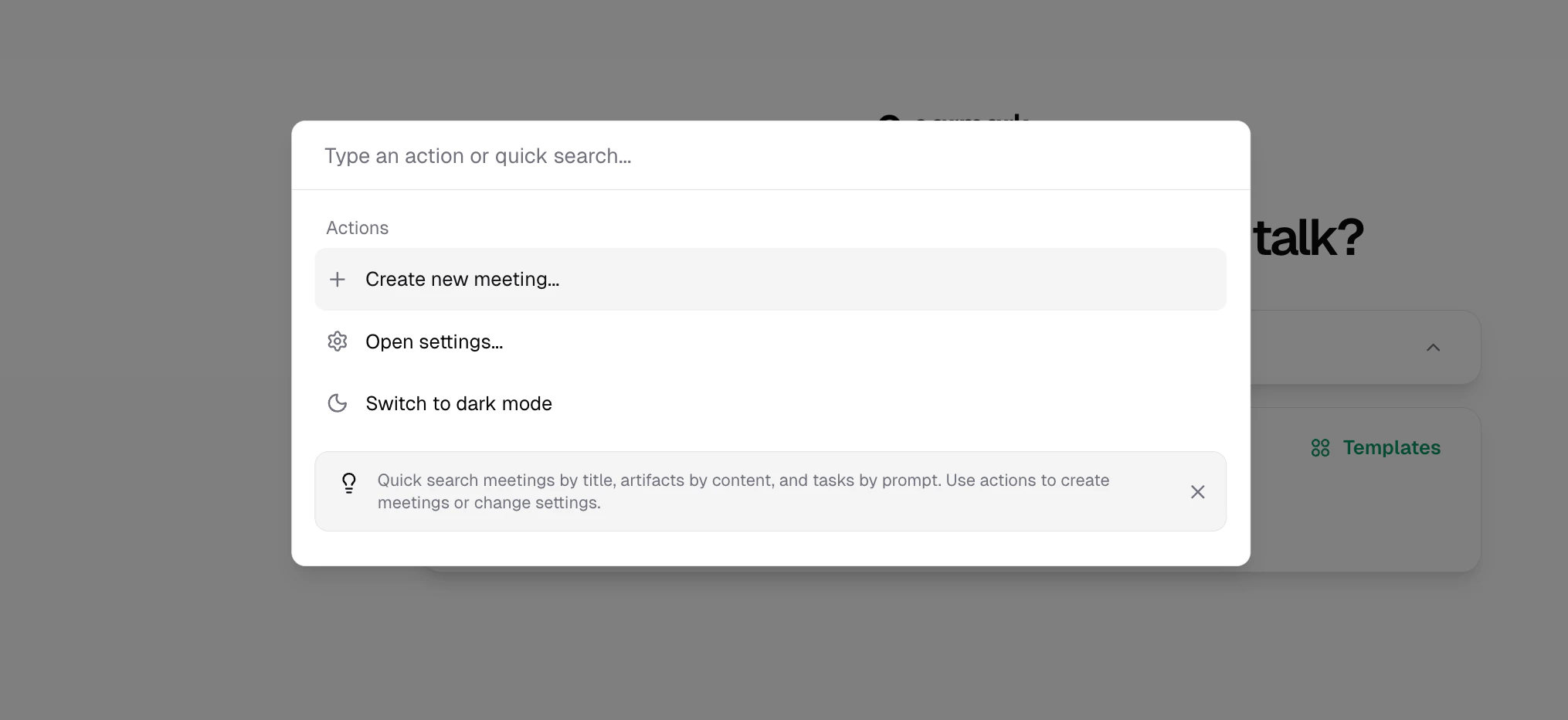
### Option 2: Type `/` in the composer
Type `/` and start searching by name. Earmark shows matching custom templates inline, so you can select one immediately without opening the full picker.
The inline suggestion menu opens.
Keep typing to narrow the results.
Press Enter or click the result to use it immediately.
## Edit or delete a template
You can:
* Rename a template
* Update its prompt
* Change its visibility if you are the creator
* Delete it if you have permission
## Best practices for writing a good template
A strong template usually does three things:
1. Start with a clear job to be done
2. Tell Earmark what to focus on
3. Define the exact output structure with headings
### A strong pattern
Use something like:
```md theme={null}
Capture the key outcomes from this meeting. Use the format:
# Meeting Recap
## Key Discussion Points
## Decisions Made
## Action Items
## Next Steps
```
This gives Earmark both a clear instruction and a clear output format.
### What makes templates work well
* Be specific about the outcome you want
* Use explicit section headings
* Keep the format stable across meetings
* Write for a repeatable workflow, not a one-off conversation
* Test the template in a real meeting and refine it after seeing the result
### A good default pattern
Many strong templates follow this structure:
* A short instruction at the top
* Then `Use the format:`
* Then a clean Markdown outline with headings
### Keep them focused
Avoid trying to do everything in one template.
Three focused templates are usually better than one giant catch-all prompt.
## Limits and behavior to know
* Template prompts can be up to **8,000 characters**
* You need to save a template before you can copy a link to it
* `Copy link` creates or reuses one stable public link per template
* Turning the link `Off` revokes public access without changing the template itself
* Public links open the latest template in Earmark and import a local copy only when needed
* Workspace visibility controls who sees the template inside Earmark
* Only the template creator can manage the public link
## When to use a custom template instead of a built-in template
Use a custom template when:
* your team already has a house format
* you repeat the same output often
* a built-in template is close, but not quite right
* you want your workspace to standardize a recurring artifact
Use a built-in template when:
* you are exploring a workflow for the first time
* your format does not need to be strict
* you just want a fast starting point
A good way to create your first custom template is to start from a built-in template, run it in a real meeting, then save an improved version that matches your team’s exact format.