> ## Documentation Index
> Fetch the complete documentation index at: https://docs.tryearmark.com/llms.txt
> Use this file to discover all available pages before exploring further.
# Search
> Search meetings, artifacts, and actions from anywhere
## What it does
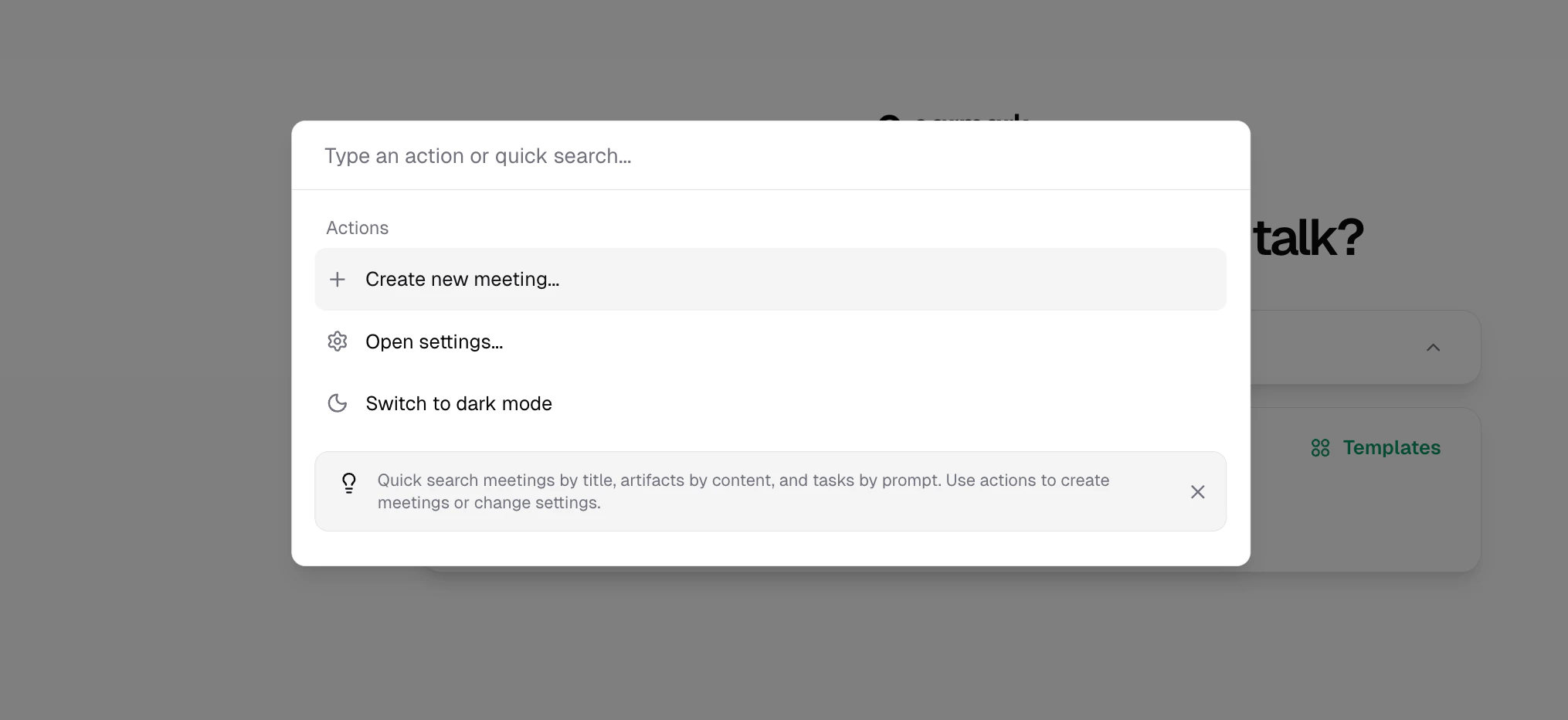
The command menu is a global search and quick-action interface. Press `Cmd+K` (macOS) or `Ctrl+K` (Windows/Linux) from anywhere in Earmark to search across your meetings, artifacts, and tasks, or jump to common actions instantly.
## Why it matters
As your team accumulates meetings and artifacts, finding the right conversation or output quickly becomes essential. The command menu puts everything one keystroke away.
## How to use it
Press `Cmd+K` or `Ctrl+K`, or click the search button in the sidebar.
Start typing to search across meeting titles, artifact content, and task prompts. Results appear instantly.
Use arrow keys to navigate results and Enter to open. Results are grouped by type (meetings, artifacts, tasks).
## What you can search
| Content type | What's searched |
| ------------- | -------------------------------------- |
| **Meetings** | Meeting titles |
| **Artifacts** | Full artifact text content |
| **Tasks** | Prompt text used to generate artifacts |
Search uses full-text indexing for fast, relevant results across your entire meeting history.
## Quick actions
Beyond search, the command menu provides quick access to:
* **Start a new meeting**: jump straight into a fresh session
* **Open settings**: go directly to your settings
* **Toggle theme**: switch between light and dark mode
The command menu is keyboard-first. You can open it, search, navigate, and select without touching the mouse, which is ideal for staying in flow during or between meetings.