> ## Documentation Index
> Fetch the complete documentation index at: https://docs.tryearmark.com/llms.txt
> Use this file to discover all available pages before exploring further.
# Live Widget
> Use the desktop floating control to confirm recording and pin moments without switching windows
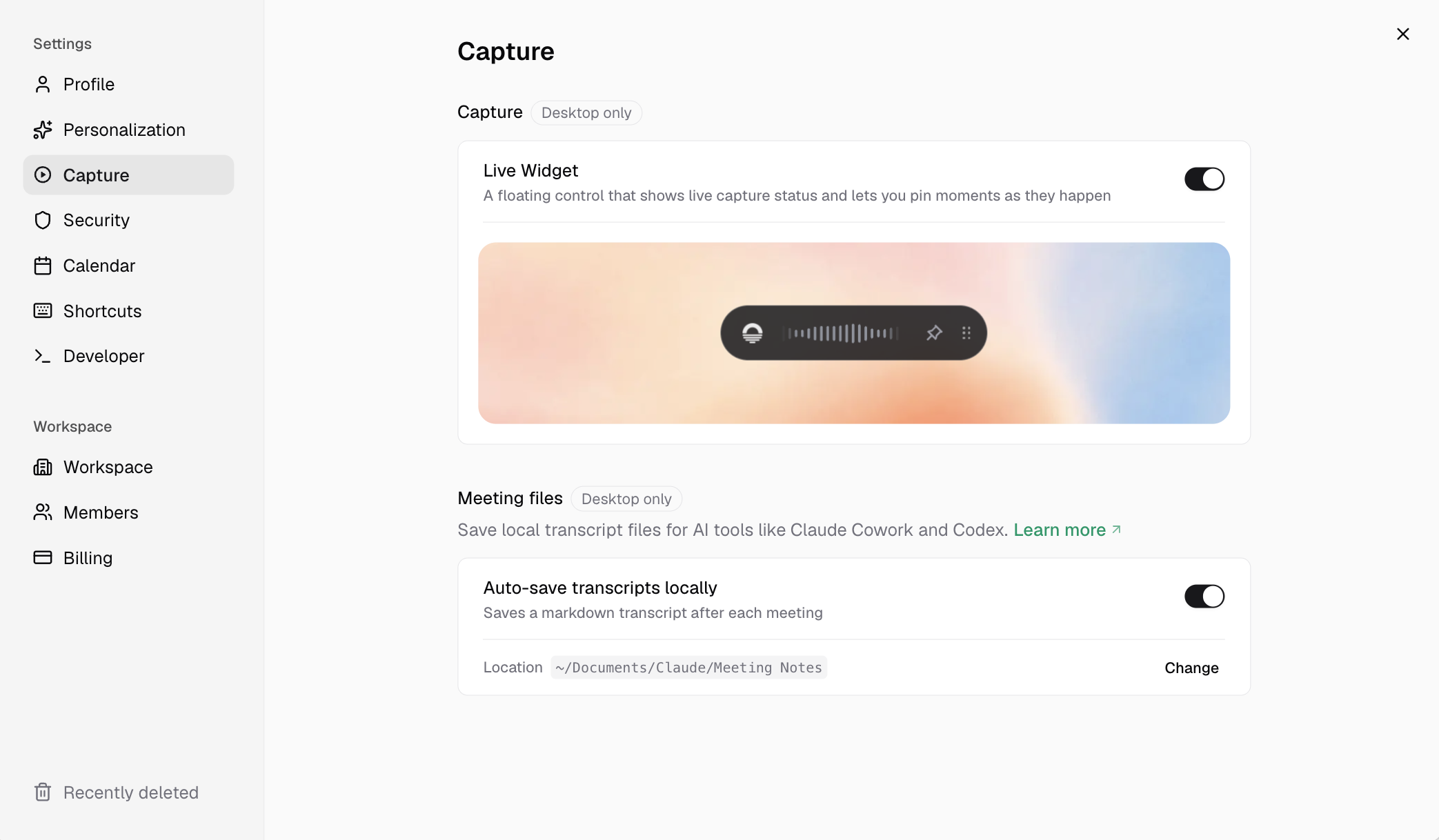
The Live Widget is a small floating control that appears on your screen during a desktop recording. It gives you a persistent signal that Earmark is capturing the meeting and puts [pin](/earmark-basics/pins) actions one click away — without bringing the main app to the front.
## Desktop only
The Live Widget is available in the **desktop app** on macOS and Windows. It is not available on web.
Enable or disable it in **Settings > Capture**. See [Capture settings](/customization/capture) for the full settings reference.
## What you can do from the widget
| Control | What it does |
| ----------------------- | ---------------------------------------------------------------------------------------------------------------------- |
| **Recording indicator** | Confirms capture is active so you can stay focused on the call |
| **Pin** | Drops a [pin](/earmark-basics/pins) on the current moment, same as the meeting command bar or `Option + P` / `Alt + P` |
Drag the widget anywhere on screen — for example over your Zoom or Teams window — so you can see that recording is active while keeping your eyes on the conversation.
## How to turn it on
In the Earmark desktop app, go to **Settings > Capture**.
Turn on the Live Widget toggle.
The widget appears when a recording starts.
## Pin shortcuts
For global pin shortcuts that work even when the widget isn't visible, use **Settings > Keyboard shortcuts** (default `Option + P` on macOS or `Alt + P` on Windows). See [Pins](/earmark-basics/pins) for when pinning is available and what happens after you drop one.
## Related
* [Pins](/earmark-basics/pins) — mark and use important moments
* [Capture settings](/customization/capture) — configure the Live Widget and related options
* [During a meeting](/using-earmark/during-a-meeting) — live tasks, templates, and pins in flow
* [Earmark toolbar](/using-earmark/toolbar) — start and stop capture from the menu bar or system tray