> ## Documentation Index
> Fetch the complete documentation index at: https://docs.tryearmark.com/llms.txt
> Use this file to discover all available pages before exploring further.
# Templates
> Pre-built prompts that give you better artifacts faster
## What it does
Templates are pre-built tasks that tell Earmark how to structure your artifact. Instead of writing a task prompt from scratch, pick a template that matches your goal (run a meeting, send an update, shape a feature, or assess risk) and get a polished artifact in seconds.
## Why it matters
Good tasks produce good artifacts. Templates encode proven structures so your team gets consistent, high-quality outputs without reinventing the format every time.
## Where to find templates
There are two ways to access templates, both from inside the meeting view.
### Option 1: Templates button
The **Templates** button sits in the toolbar above the prompt bar. Click it to open the full template library where you can browse by category, filter by role, or search.
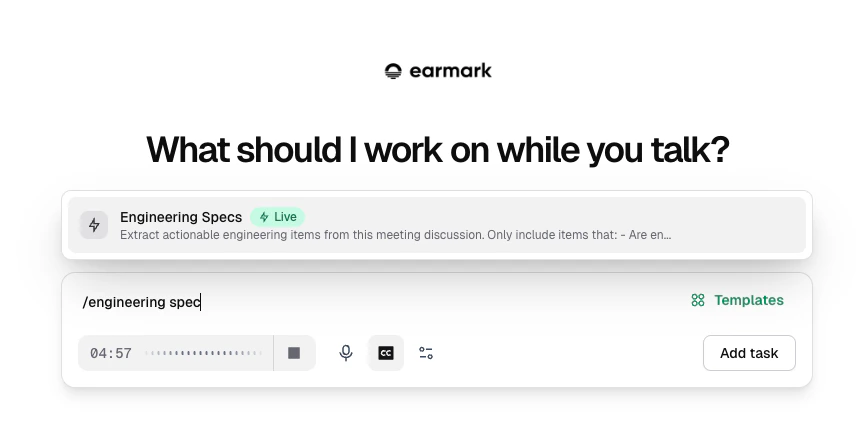
### Option 2: Slash commands
Type `/` at the start of the prompt bar. An inline menu appears with template suggestions. Keep typing to filter (for example, `/sprint`), then press Enter or click to select.
The inline suggestion menu appears with your most relevant templates.
Continue typing to narrow results. Search works across template names, content, and keywords.
The template prompt is inserted into the prompt bar, ready to run or customize.
## Template categories
### By use case
| Category | What it helps with |
| -------------------------- | ---------------------------------------------------------------------------- |
| **Run a meeting** | Real-time meeting minutes, quick syncs, client calls, stakeholder reviews |
| **Send an update** | Slack posts, Teams updates, email summaries, topic outcome trackers |
| **Shape a feature** | PRDs, engineering specs, feature specifications, security review questions |
| **Respond to an incident** | Incident command documents with timelines and next steps |
| **Strategy** | SCQA frameworks, executive summaries, competitive analysis, vision alignment |
| **Check security** | SOC 2 checklists, ISO 27001 references, compliance checks |
| **Mitigate risk** | Risk assessment matrices, technical debt alerts, risk spotlights |
| **Boost team dynamics** | Meeting tempo checks, conflict resolution, inspiration prompts |
### By role
Templates can be filtered by role so you see the most relevant options:
* **Product Manager**: strategy, PRDs, stakeholder reviews, prioritization
* **Engineering Manager**: engineering specs, technical architecture, risk assessment
* **Project Manager**: meeting minutes, action items, quick syncs, ticket generation
### Special categories
* **Try Live**: templates designed for real-time use during active meetings. These appear first when you're in a live session.
* **Persona**: AI takes on a specific advisory role (Strategic PM, Security Sentinel, Devil's Advocate, etc.) and provides targeted analysis.
## Built-in templates
Earmark ships with 30+ templates covering common workflows:
Structured outputs with headings and sections:
* Real-Time Meeting Minutes and Action Items
* Slack / Teams / Email Update Generators
* Product Requirements Document (PRD) Outline
* Engineering Specs
* Incident Command Document
* Executive Summary
* SCQA Formatter
* And more
Short, focused outputs for in-meeting use:
* Ticket Generator: extract actionable tickets in a table
* Topic Outcome Tracker: track what was discussed and decided
* Goal Status Tracker: measure meeting goals in real time
* Make Me Look Smart: get a sharp question to contribute
* Acronym Explanation: decode jargon on the fly
* Decision Summary, Next Steps, and more
AI adopts an advisory perspective:
* Strategic Product Manager
* Security Sentinel
* Diplomatic Gatekeeper
* Technical Jargon Translator
* Devil's Advocate
* Data-Driven Analyst
* And more
## Custom templates
If built-in templates do not cover your workflow, create your own custom template. Custom templates let you save reusable prompts for yourself or your workspace, share them with teammates, and invoke them from the Templates picker or the `/` command.
See [Custom templates](/customization/custom-templates) for how to create, share, and manage them.