> ## Documentation Index
> Fetch the complete documentation index at: https://docs.tryearmark.com/llms.txt
> Use this file to discover all available pages before exploring further.
# Workspaces
> Create and manage workspaces for your team
## What is a workspace
A workspace is the shared home for your team's meetings, artifacts, and decisions. Everyone in the workspace can see meeting outputs, review artifacts, and stay aligned without chasing down notes from individual contributors.
## Why workspaces matter
Delivery slows down when summaries live with one person. A workspace keeps decisions accessible to the whole team: product, design, engineering, and leadership all work from the same source.
## Roles
Each workspace has two roles:
| Role | What they can do |
| ---------- | ------------------------------------------------------------------------------------------------------------------------------- |
| **Admin** | Manage workspace settings, invite members, set policies (like temporary mode), update company vision and transcription language |
| **Member** | Create and view meetings, generate artifacts, use all core features |
## Inviting teammates
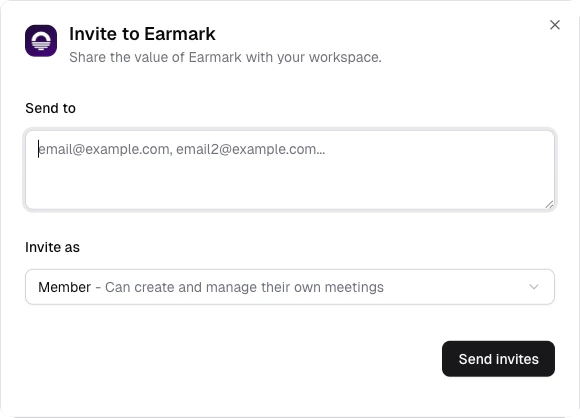
Click the invite button in the sidebar or go to **Settings > Members**.
Enter email addresses for your teammates. They'll receive an invite to join the workspace.
Admins can change any member's role between Admin and Member from the members list.
Invite both decision-makers and executors early so meeting outputs are shared from day one. Teams see the biggest lift when product, design, and engineering all review the same artifact set.
## Company vision
Admins can set a **company vision** in workspace settings: a short description of your mission, values, or current priorities (up to 500 characters). This context is used by AI when generating artifacts, so outputs are aligned with what your team cares about.
For example, setting your vision to "Ship reliable developer tools that reduce build times by 50%" helps Earmark prioritize and frame artifact content around that goal.
## Settings
Workspace settings include:
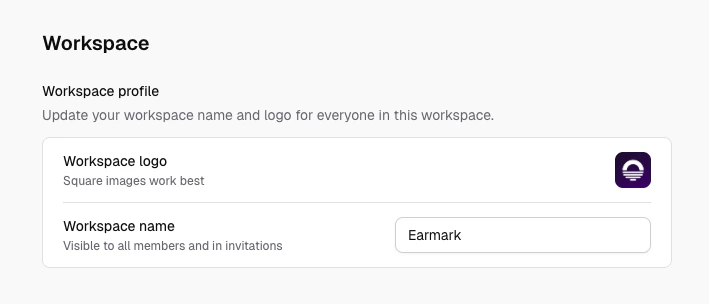
* **Workspace name and logo**: visible to all members
* **Company vision**: shapes AI artifact generation
* **Transcription language**: English or Multilingual mode
* **Temporary meetings**: enforce temporary mode for all new meetings (see [Temporary meetings](/earmark-basics/temporary-meetings))
* **Billing**: review plan status and manage upgrades in **Settings > Billing**
## Billing and plans
Use **Settings > Billing** to manage your workspace subscription:
* View your current plan or trial status, including trial end date when applicable
* Compare Starter and Pro plans with monthly or yearly billing
* Start checkout for Starter or Pro, or contact sales for Enterprise
## Practical patterns
* Use one workspace per active team or delivery stream to keep outputs focused
* Invite cross-functional teammates early; don't silo meeting context
* Set your company vision so artifacts stay relevant to your team's goals
* Review the members list periodically and remove people who have moved on
Meeting content is isolated per user: each person sees only the meetings they created. Workspace collaboration means shared access to the workspace itself, team membership, and workspace-level settings.