> ## Documentation Index
> Fetch the complete documentation index at: https://docs.tryearmark.com/llms.txt
> Use this file to discover all available pages before exploring further.

# Calendar

> Connect your calendar to streamline meeting capture

## What it does

Connect your Google Calendar or Microsoft Outlook to Earmark so your scheduled meetings appear automatically in the sidebar. Your day at a glance. Instantly see what's coming up, how many meetings you have left, and how long you have. Join and start capturing with one click.

<Frame caption="Calendar integration: join link, attendees, and agenda auto-loaded">
  <video autoPlay muted loop playsInline src="https://bwopjpjsyqjaz3ty.public.blob.vercel-storage.com/features/earmark%2Bcalendar-v3.mp4" style={{ borderRadius: '0.75rem', width: '100%' }} />
</Frame>

<Frame caption="Setting up your calendar integration">
  <video autoPlay muted loop playsInline src="https://bwopjpjsyqjaz3ty.public.blob.vercel-storage.com/setup-calendar.mp4" style={{ borderRadius: '0.75rem', width: '100%' }} />
</Frame>

## Why it matters

When meetings are connected to your calendar, you start faster, stay in context, and never miss capturing an important conversation.

<Columns cols={2}>
  <Card title="One-click join and capture" icon="bolt">
    See upcoming meetings in the sidebar and start recording instantly, with no manual setup.
  </Card>

  <Card title="Never miss a meeting" icon="bell">
    Get desktop notifications before meetings with a button to join and start capturing.
  </Card>

  <Card title="Menu bar countdown" icon="clock">
    See your next meeting and time remaining directly in the macOS menu bar.
  </Card>

  <Card title="Cleaner recurring rituals" icon="repeat">
    Weekly standups, planning sessions, and retros are always ready to capture.
  </Card>
</Columns>

## Connecting your calendar

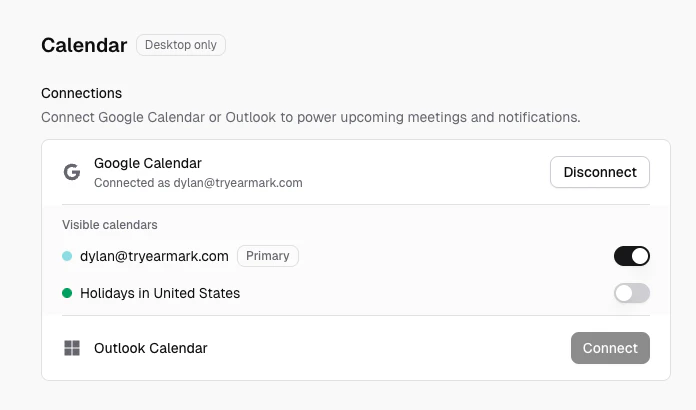
<Frame caption="Settings > Calendar with Google Calendar and Outlook connection options">
  <div
    style={{
  backgroundImage: 'url(https://mintcdn.com/earmark/vNkCE4NL0UOVgfZk/images/background-blue.png?fit=max&auto=format&n=vNkCE4NL0UOVgfZk&q=85&s=8d57271bb6e72c3715e83d97907c438b)',
  backgroundSize: 'cover',
  backgroundPosition: 'center',
  borderRadius: '1rem',
  padding: '4%',
}}
  >
    <div
      style={{
    borderRadius: '0.875rem',
    overflow: 'hidden',
    boxShadow: '0 24px 60px rgba(15, 23, 42, 0.28)',
  }}
    >
      <img src="https://mintcdn.com/earmark/7bmTb55b6UAEQSbk/images/settings-calendar-options.png?fit=max&auto=format&n=7bmTb55b6UAEQSbk&q=85&s=2a742f05d6b6b8b0348c671a7e2d34bd" alt="Settings Calendar page showing Google Calendar and Microsoft Outlook connect buttons and calendar visibility options." style={{ width: '100%', display: 'block' }} width="696" height="410" data-path="images/settings-calendar-options.png" />
    </div>
  </div>
</Frame>

<Steps>
  <Step title="Open Settings">
    Go to **Settings > Calendar** in the Earmark desktop app.
  </Step>

  <Step title="Choose your provider">
    Connect either **Google Calendar** or **Microsoft Outlook**. You can have one provider connected at a time.
  </Step>

  <Step title="Authorize access">
    Complete the OAuth flow in your browser to grant Earmark read access to your calendar events.
  </Step>

  <Step title="Select visible calendars">
    After connecting, choose which calendars appear in Earmark. Toggle individual calendars on or off (for example, show your team calendar but hide personal events).
  </Step>
</Steps>

## Upcoming meetings in the sidebar

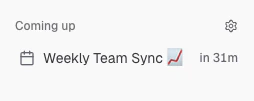
Once connected, today's meetings appear in the **Coming up** section of the sidebar. Each meeting shows:

<Frame caption="Sidebar Coming up with upcoming meetings and join actions">
  <div
    style={{
  backgroundImage: 'url(https://mintcdn.com/earmark/vNkCE4NL0UOVgfZk/images/background-blue.png?fit=max&auto=format&n=vNkCE4NL0UOVgfZk&q=85&s=8d57271bb6e72c3715e83d97907c438b)',
  backgroundSize: 'cover',
  backgroundPosition: 'center',
  borderRadius: '1rem',
  padding: '4%',
}}
  >
    <div
      style={{
    borderRadius: '0.875rem',
    overflow: 'hidden',
    boxShadow: '0 24px 60px rgba(15, 23, 42, 0.28)',
  }}
    >
      <img src="https://mintcdn.com/earmark/7bmTb55b6UAEQSbk/images/upcoming-meetings-sidebar.png?fit=max&auto=format&n=7bmTb55b6UAEQSbk&q=85&s=0a4d7480f56cd2c16c2252b4221c6e24" alt="Earmark sidebar showing the Coming up section with upcoming meetings, countdown badges, and join controls." style={{ width: '100%', display: 'block' }} width="254" height="101" data-path="images/upcoming-meetings-sidebar.png" />
    </div>
  </div>
</Frame>

* The meeting title from your calendar
* A countdown badge showing time remaining ("in 30m", "in 2h", "now")
* A link to join and start capturing

Meetings that have passed their end time are automatically hidden unless they're actively being recorded.

## Desktop notifications

Enable **One click join and capture** in calendar settings to receive a notification before each meeting. The notification includes a button to join the meeting and start recording instantly.

## Menu bar countdown (macOS)

On macOS, Earmark can display your next meeting and a live countdown directly in the system menu bar. Toggle this in **Settings > Calendar > Menu bar**.

<Frame caption="macOS menu bar with next meeting and countdown">
  <div
    style={{
  backgroundImage: 'url(https://mintcdn.com/earmark/vNkCE4NL0UOVgfZk/images/background-blue.png?fit=max&auto=format&n=vNkCE4NL0UOVgfZk&q=85&s=8d57271bb6e72c3715e83d97907c438b)',
  backgroundSize: 'cover',
  backgroundPosition: 'center',
  borderRadius: '1rem',
  padding: '4%',
}}
  >
    <div
      style={{
    borderRadius: '0.875rem',
    overflow: 'hidden',
    boxShadow: '0 24px 60px rgba(15, 23, 42, 0.28)',
  }}
    >
      <img src="https://mintcdn.com/earmark/7bmTb55b6UAEQSbk/images/settings-macOS-tray-calendar-full.png?fit=max&auto=format&n=7bmTb55b6UAEQSbk&q=85&s=730d950f30260de188daf9baa9d40ccf" alt="macOS menu bar extras showing Earmark calendar tray with the next meeting title and countdown." style={{ width: '100%', display: 'block' }} width="596" height="35" data-path="images/settings-macOS-tray-calendar-full.png" />
    </div>
  </div>
</Frame>

The preview in settings shows exactly what the menu bar will look like, and updates live as you toggle the setting.

## Switching providers

To switch from Google to Outlook (or vice versa), disconnect your current calendar first, then connect the new one. Earmark will prompt you to clear any stale upcoming meetings from the previous provider to keep the sidebar clean.

## Good fit

* Team standups and daily syncs
* Weekly planning and retrospectives
* Roadmap reviews and milestone check-ins
* Client calls and stakeholder meetings