

Live Widget floating during an active recording
Desktop only
The Live Widget is available in the desktop app on macOS and Windows. It is not available on web. It’s off by default. Turn it on in Settings > Capture.Capture settings apply per machine. Turning on the Live Widget on your laptop doesn’t turn it on on your desktop.
What you can do from the widget
How to turn it on
1
Open Settings
In the Earmark desktop app, go to Settings > Capture.
2
Enable Live Widget
Turn on the Live Widget toggle.
3
Start a recording
The widget appears when a recording starts.
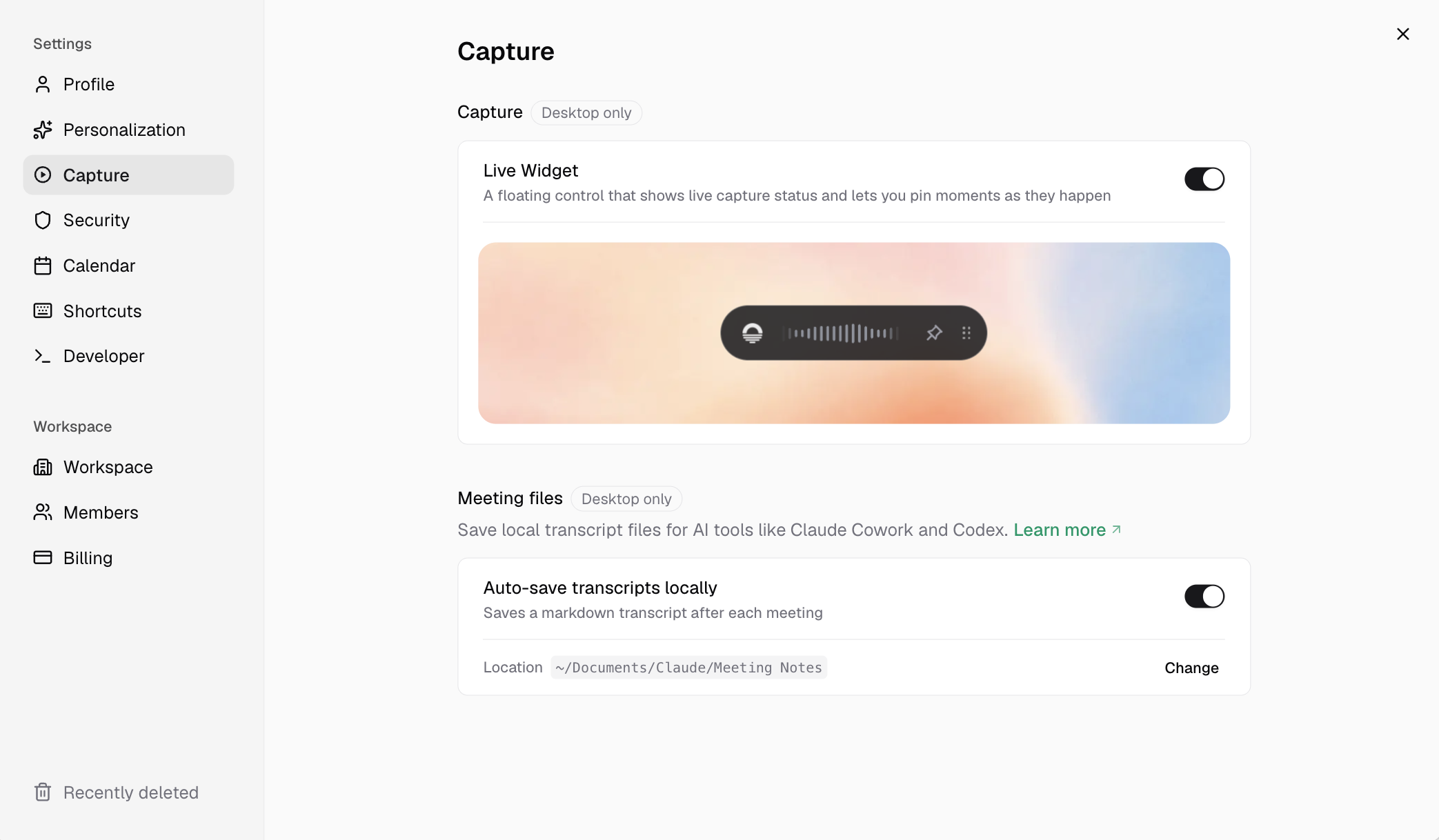
Settings > Capture with Live Widget enabled
Pin shortcuts
For global pin shortcuts that work even when the widget isn’t visible, use Settings > Keyboard shortcuts (defaultOption + P on macOS or Alt + P on Windows). See Pins for when pinning is available and what happens after you drop one.
Desktop and web
Related
- Pins — mark and use important moments
- During a meeting — live tasks, templates, and pins in flow
- Earmark toolbar — start and stop capture from the menu bar or system tray