

Get caught up with Chat
Before a recurring sync or a customer call, ask Chat what you need to remember:- “Help me prepare for tomorrow using my past meetings.” With your calendar connected, Chat looks ahead up to two weeks and pairs each upcoming event with what was said in related meetings.
- “What did we decide last time with Acme, and what’s still open?” Chat answers from past meetings and cites the ones it used.
- Open the meeting itself and click Chat in the header, then choose Help me prepare for this meeting.
Join the scheduled call
When the meeting’s scheduled time arrives, open it in the desktop app and click the call button above the transcript, such as Join Zoom or Join Google Meet. It opens the call without starting a recording, so you can start capture whenever you’re ready. To do both in one click, use Join & capture from a desktop notification. See Joining your call.Seed the meeting with tasks
You don’t have to wait until the meeting starts to add tasks. Open the meeting in Earmark before the call and add the tasks you already know you’ll want: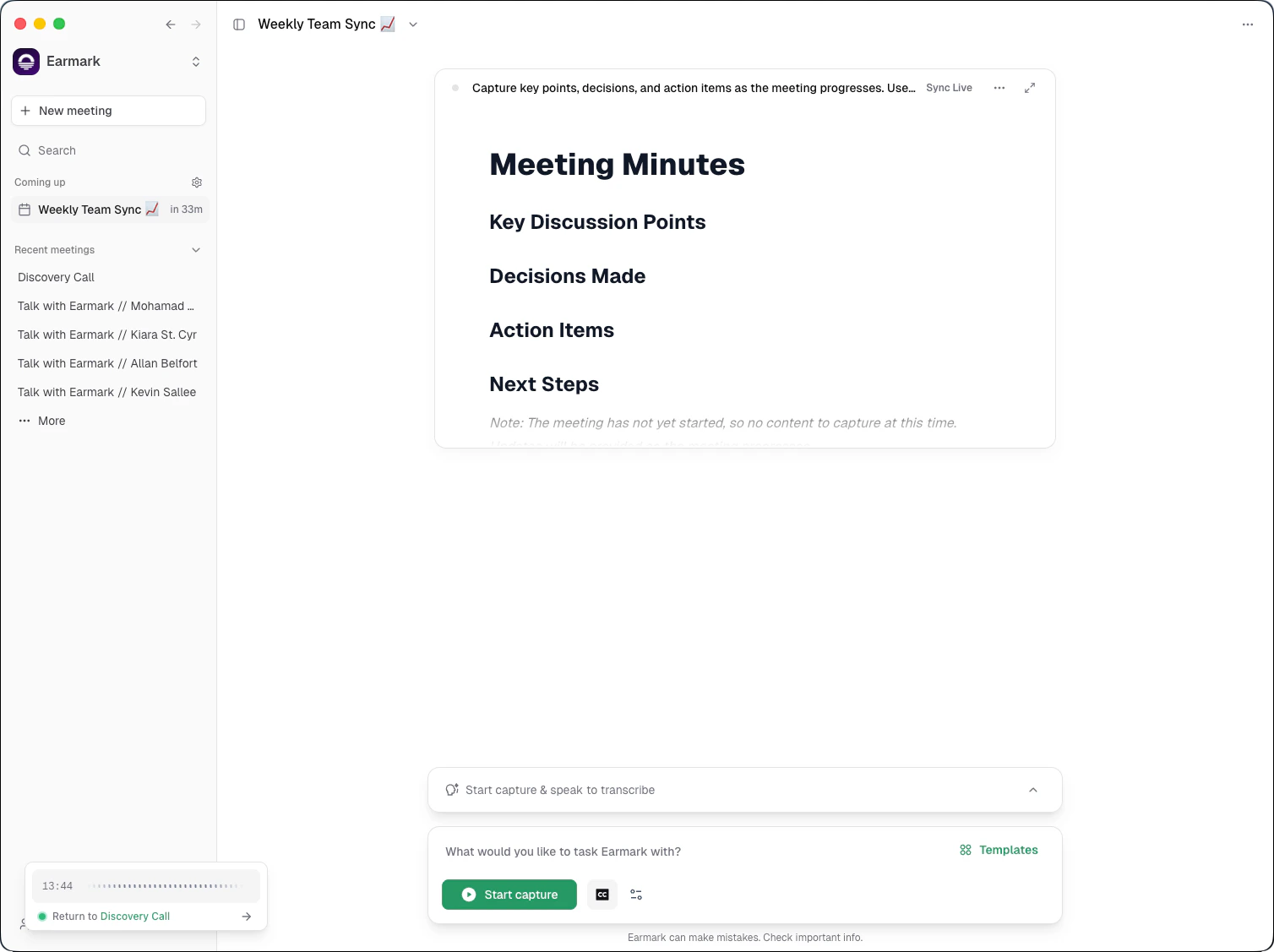
Pre-seeded tasks before recording starts
1
Open or create the meeting
Click New meeting or open an upcoming meeting from the sidebar (if your calendar is connected).
2
Add tasks from the template library
Open the template library and add the outputs you know you’ll need. Common pre-meeting picks:
- Real-Time Meeting Minutes: if you want a running summary of decisions and actions
- Engineering Specs: if the meeting will produce engineering work
- Ticket Generator: if you need to extract work items for your project tracker
- Stakeholder Review: if this is a cross-functional alignment meeting
- Topic Outcome Tracker: if you want a structured record of what was discussed and decided
3
Write custom prompts for anything specific
If none of the templates fit, write your own prompt. For example: “Extract all API design decisions with trade-offs discussed” or “Summarize the budget discussion with risks and recommendations.”
Add meeting context
Open the Customize context dialog to give Earmark background that shapes every artifact: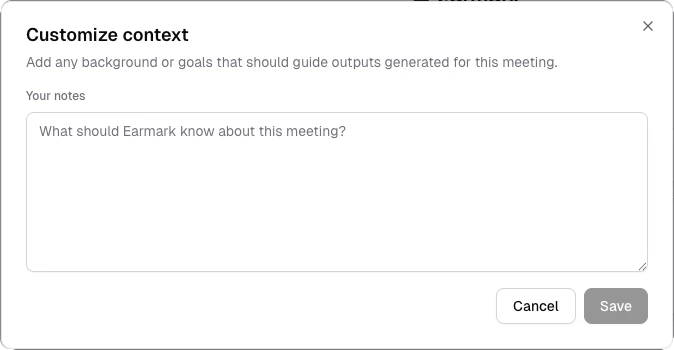
Customize context for meeting background and goals
- What the meeting is about and what you hope to decide
- Key constraints or background the team should be aware of
- Specific questions you want answered by the end
If you’re joining from a connected calendar, Earmark automatically pulls in the meeting title, description, date/time, and attendee list from your calendar event. This context is passed to the AI without any manual setup.
Set up personalization (one-time)
If you haven’t already, configure your personalization settings before your first real meeting:- Role (e.g., “Senior Product Manager”): shapes tone and terminology
- Bio: your focus areas, communication style, current priorities
- Company vision (workspace admin): aligns all artifacts with your team’s mission
Choose your templates ahead of time
Browse the template library and identify what you’ll need. For common meeting types:Pre-meeting checklist
- Open the meeting in Earmark (or create one)
- Ask Chat to catch you up on related past meetings
- Add the meeting to its project, if it has one
- Add 1-3 tasks from templates or custom prompts
- Add context via the Customize context dialog if the calendar description isn’t enough
- Confirm your personalization settings are current
- Tell your team what outputs to expect so the meeting stays focused