

What it does
Connect your Google Calendar or Microsoft Outlook to Earmark so your scheduled meetings appear automatically in the sidebar. Your day at a glance. Instantly see what’s coming up, how many meetings you have left, and how long you have. Join and start capturing with one click.Calendar integration: join link, attendees, and agenda auto-loaded
Setting up your calendar integration
Why it matters
When meetings are connected to your calendar, you start faster, stay in context, and never miss capturing an important conversation.One-click join and capture
Open your call and start recording in one click, right from a desktop notification or the toolbar.
Never miss a meeting
Get desktop notifications before meetings with a button to join and start capturing.
Menu bar countdown
See your next meeting and time remaining directly in the macOS menu bar.
Cleaner recurring rituals
Weekly standups, planning sessions, and retros are always ready to capture.
Connecting your calendar
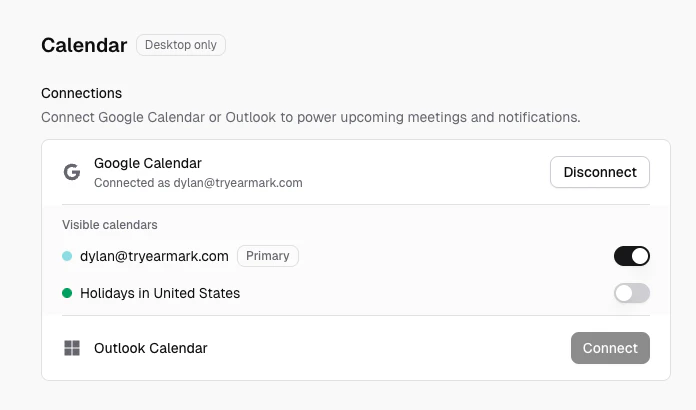
Settings > Calendar with Google Calendar and Outlook connection options
1
Open Settings
Go to Settings > Calendar in the Earmark desktop app.
2
Choose your provider
Connect either Google Calendar or Microsoft Outlook. You can have one provider connected at a time.
3
Authorize access
Complete the OAuth flow in your browser to grant Earmark read access to your calendar events.
4
Select visible calendars
After connecting, choose which calendars appear in Earmark. Toggle individual calendars on or off (for example, show your team calendar but hide personal events).
Upcoming meetings in the sidebar
Once connected, today’s meetings appear in the Coming up section of the sidebar. Each meeting shows: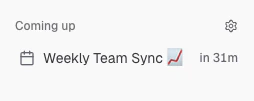
Coming up in the sidebar
- The meeting title from your calendar
- A countdown badge showing time remaining (“in 30m”, “in 2h”, “now”)
- A hover preview with the date, time, and assigned projects
Declined and canceled meetings
Meetings you’ve declined and canceled events don’t appear as upcoming meetings or trigger new reminders. Earmark uses your response to the invitation: if you organize a meeting and a guest declines, your meeting stays eligible for a reminder. An already-open reminder closes when your calendar sends an explicit decline or cancellation. If declining removes the event from your calendar’s feed, an open reminder can remain until you dismiss it.Hide events with no attendees
Placeholder events, like focus time or reminders you put on your own calendar, can crowd Coming up. Turn off Show events with no attendees in Settings > Calendar to hide events that no one else is invited to. They’re also hidden from the toolbar, notifications, and Chat. The setting is on by default, and meetings you’ve recorded always stay visible.Finding the join link
Earmark looks for the call link in your event’s conferencing details, location, and description. Passcodes stay attached even when the link sits in a formatted description, and an unrelated link, like one to your agenda, doesn’t stop Earmark from finding the call. Zoom webinar links work too. If Earmark can’t find a call link, open the event in your calendar and check that it has one.Joining your call
When a scheduled meeting is underway, open it in the desktop app. If the event has a call link, a button such as Join Zoom, Join Google Meet, or Join Teams appears above the transcript. Click it to open the call. This button doesn’t start recording, so you can get settled first. Start capture from the meeting’s capture controls when you’re ready. To join and record in one click, use Join & capture from a desktop notification, or click the meeting under Coming up in the Earmark toolbar. The button hides when Earmark detects an active call. To hide it yourself, click Dismiss meeting link. It stays hidden for your current visit and can reappear when you reopen the meeting, as long as the scheduled meeting is still happening. With desktop 1.9.0 or later, supported Zoom links open straight in Zoom instead of going through your browser first. If Zoom isn’t installed or the link can’t open directly, Earmark falls back to the original web link. Other meeting tools open the way they always have.Desktop notifications
Turn on One click join and capture in calendar settings to get a notification before each meeting. Click Join & capture in the notification to open the call and start recording together. That’s the difference from the call button above the transcript, which only opens the call. To hear a sound when the reminder appears, choose one under Reminder sound. You’ll hear a preview as you pick. The default is None. Click Show example to see the full notification.Menu bar countdown (macOS)
On macOS, Earmark displays your next meeting and a live countdown directly in the system menu bar. It’s on by default. Turn it off with Show countdown under Menu bar in Settings > Calendar.
macOS menu bar with next meeting and countdown
Switching providers
To switch from Google to Outlook (or vice versa), disconnect your current calendar first, then connect the new one. Earmark will prompt you to clear any stale upcoming meetings from the previous provider to keep the sidebar clean.If your upcoming list looks stale
If a calendar refresh fails, Earmark keeps the last successful list and retries on its next regular refresh. Your existing meetings stay visible, but new changes may take longer to appear. If a selected calendar is no longer available, Earmark can recover by keeping your other selections or switching to an available default calendar. It only changes the selection after confirming the calendar is gone and a replacement is available. If your list stays stale, review your choices in Settings > Calendar.Good fit
- Team standups and daily syncs
- Weekly planning and retrospectives
- Roadmap reviews and milestone check-ins
- Client calls and stakeholder meetings