

What it does
The command menu is a global search and quick-action interface. PressCmd+K (macOS) or Ctrl+K (Windows/Linux) from anywhere in Earmark to search across your meetings, artifacts, and tasks, or jump to common actions instantly.
Why it matters
As your team accumulates meetings and artifacts, finding the right conversation or output quickly becomes essential. The command menu puts everything one keystroke away.How to use it
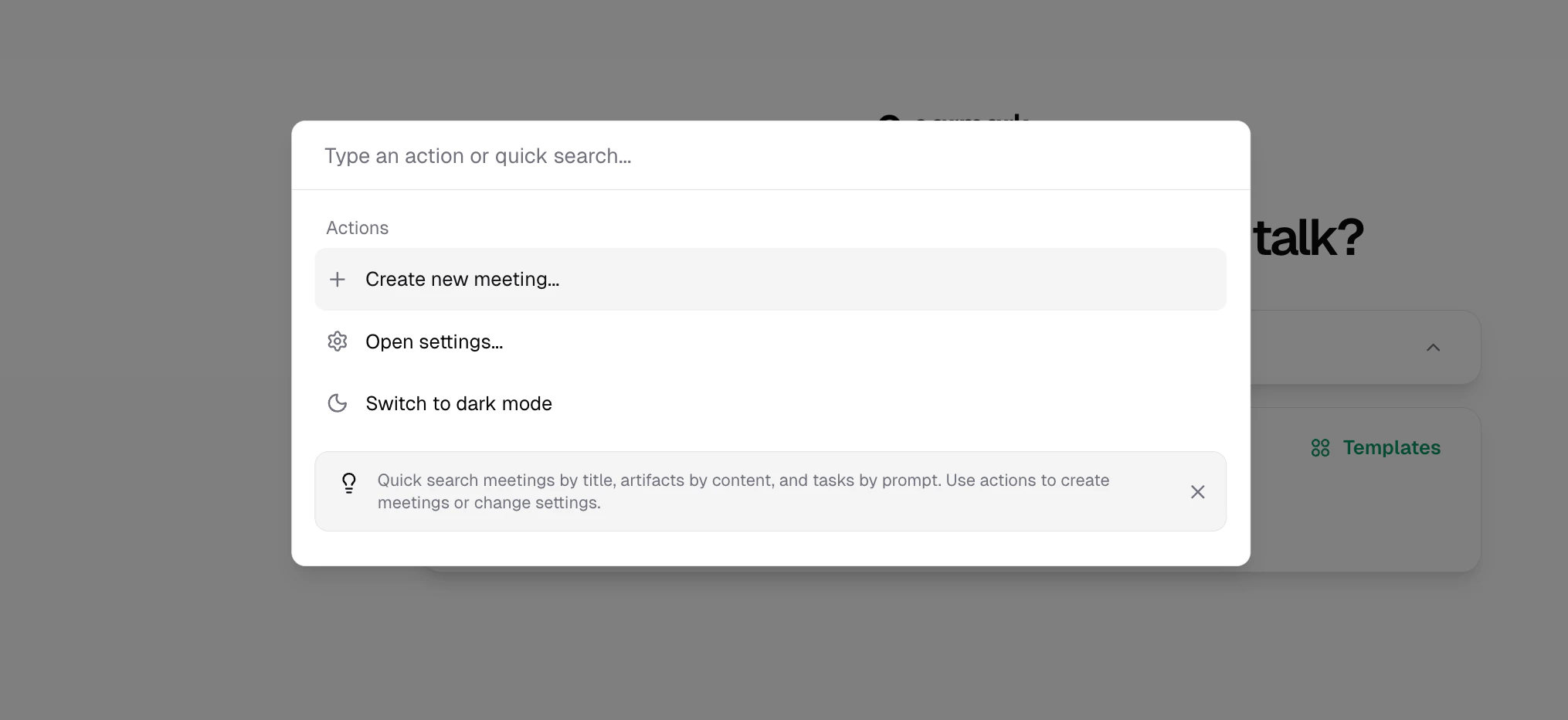
Command menu search across meetings, artifacts, and tasks
1
Open the command menu
Press
Cmd+K or Ctrl+K, or click the search button in the sidebar.2
Type your search
Start typing to search across meeting titles, artifact content, and task prompts. Results appear instantly.
3
Navigate and select
Use arrow keys to navigate results and Enter to open. Results are grouped by type (meetings, artifacts, tasks).
What you can search
Search uses full-text indexing for fast, relevant results across your entire meeting history.
Quick actions
Beyond search, the command menu provides quick access to:- Start a new meeting: jump straight into a fresh session
- Open settings: go directly to your settings
- Toggle theme: switch between light and dark mode